
commercebuild Success Portal commercebuild Success Portal

  • Home
  • Submit a Ticket
  • Updates
  • Login
  • Contact Us
Home / Getting Started, Tutorials / How to Change A Custom Page’s Parent Page

How to Change A Custom Page’s Parent Page

1568 views Less than a minute 0

By default, all newly created custom pages use the Main Navigation as their Parent Page.  However, you may want your custom page to be organized under another parent custom page, e.g. yourstore.com/onecustompage/anothercustompage.

Learn more about creating custom pages.

Using the example, “One Custom Page” would be the parent of “Another Custom Page”. You can observe this hierarchy visually in admin by navigating to Content Management > Custom Pages.
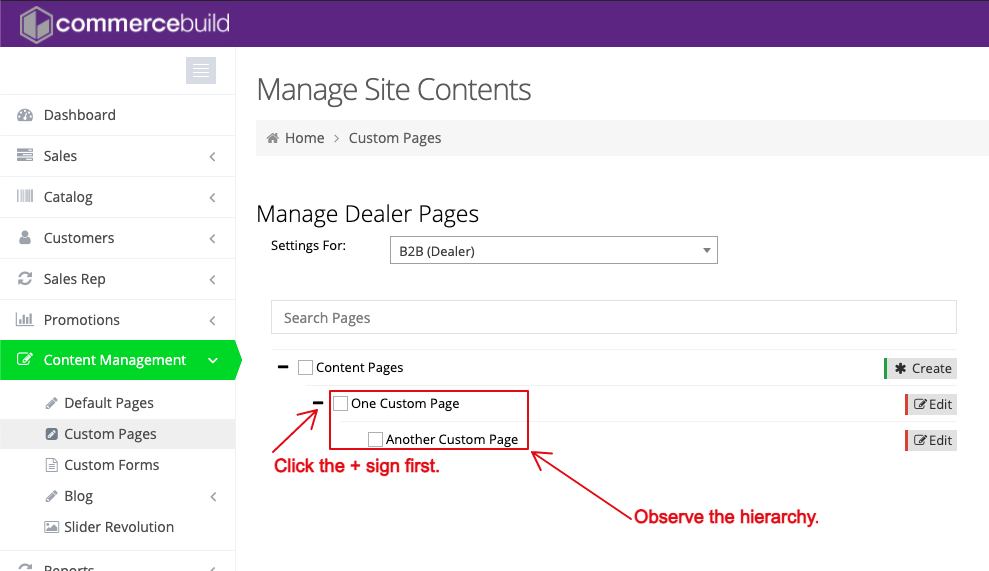
Selecting a Parent Page

To change a page’s parent, click the “Edit” button for the page you’d like to change (see screenshot above). Then, select the new Parent Page from the dropdown menu.
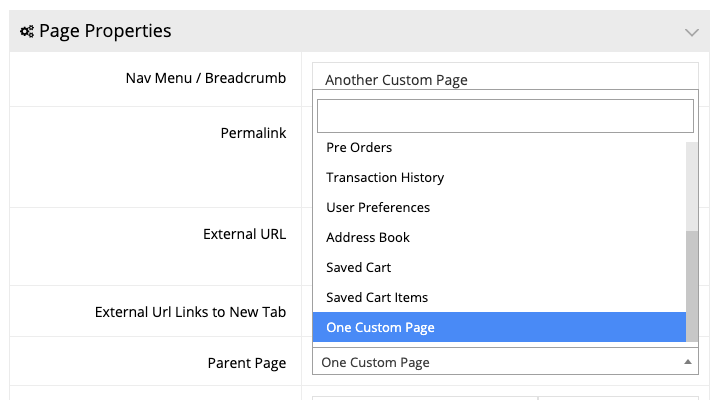
In the case of our example, “One Custom Page” is selected as the parent page. If you wanted to change it, you may do so by selecting a different page from the dropdown menu.

Once you select the parent page, click Apply to save your changes.

webstore Getting StartedTutorials

About Bradly Hale

View all posts by Bradly Hale →

Related Articles

  • How to Enable reCAPTCHA on Custom Forms
  • Adding a custom message to the shipping step at checkout
  • How to configure Stripe as a payment method
  • SQL Server Change Tracking Query for Sage 300 and X3

Popular Articles

  • How to Generate Sitemaps and the Google Product Feed 3256 0
  • Enable Cloudflare Rate Limiting 2930 0
  • Enable Firewall Rules and a JavaScript Browser Challenge 2820 16
  • How to Add a JavaScript Snippet 2469 8
  • IP Allowlist 2442 0

New Articles

  • Error when adding a new user: Email is already in use 975 0
  • How to Check commercebuild Payments Version 1252 0
  • How to Enable reCAPTCHA on Custom Forms 1198 0
  • Manually posting an order 1330 0
  • Adding a custom message to the shipping step at checkout 1120 0
© commercebuild 2022. All rights reserved.