
commercebuild Success Portal commercebuild Success Portal

  • Home
  • Submit a Ticket
  • Updates
  • Login
  • Contact Us
Home / Tutorials / How to Enable reCAPTCHA on Custom Forms

How to Enable reCAPTCHA on Custom Forms

1239 views Less than a minute 0

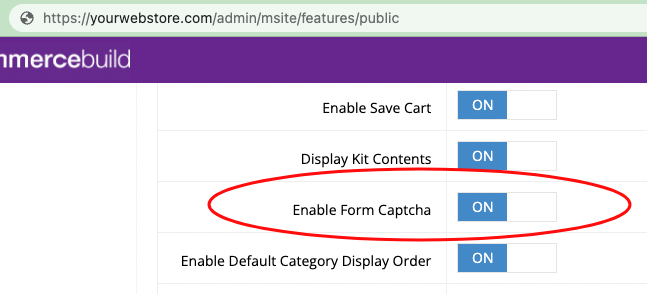
In order to enable reCAPTCHA on Custom Forms, go your web store Dashboard, click System > Features > B2c (Public), and toggle Enable Form Captcha to ON.
To verify that the reCAPTCHA is working, go to the page with the custom form as a Guest user and verify its presence:
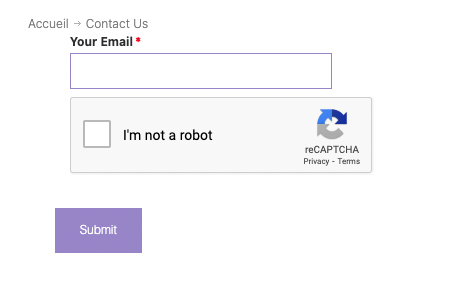
Note that logged in users will not see the reCAPTCHA form. In other words, reCAPTCHA will only be displayed to guest users. 

Tutorials

About Bradly Hale

View all posts by Bradly Hale →

Related Articles

  • Adding a custom message to the shipping step at checkout
  • How to configure Stripe as a payment method
  • SQL Server Change Tracking Query for Sage 300 and X3
  • Enable Product Level Warehouse Restriction

Popular Articles

  • How to Delete or Deactivate Promo Codes 3720 0
  • How to Generate Sitemaps and the Google Product Feed 3629 0
  • Enable Cloudflare Rate Limiting 3071 0
  • Enable Firewall Rules and a JavaScript Browser Challenge 2865 16
  • IP Allowlist 2611 0

New Articles

  • Error when adding a new user: Email is already in use 1094 0
  • How to Check commercebuild Payments Version 1384 0
  • How to Enable reCAPTCHA on Custom Forms 1239 0
  • Manually posting an order 1460 0
  • Adding a custom message to the shipping step at checkout 1252 0
© commercebuild 2022. All rights reserved.