
commercebuild Success Portal commercebuild Success Portal

  • Home
  • Submit a Ticket
  • Updates
  • Login
  • Contact Us
Home / How to Edit A Registration Form

How to Edit A Registration Form

1091 views Less than a minute 0

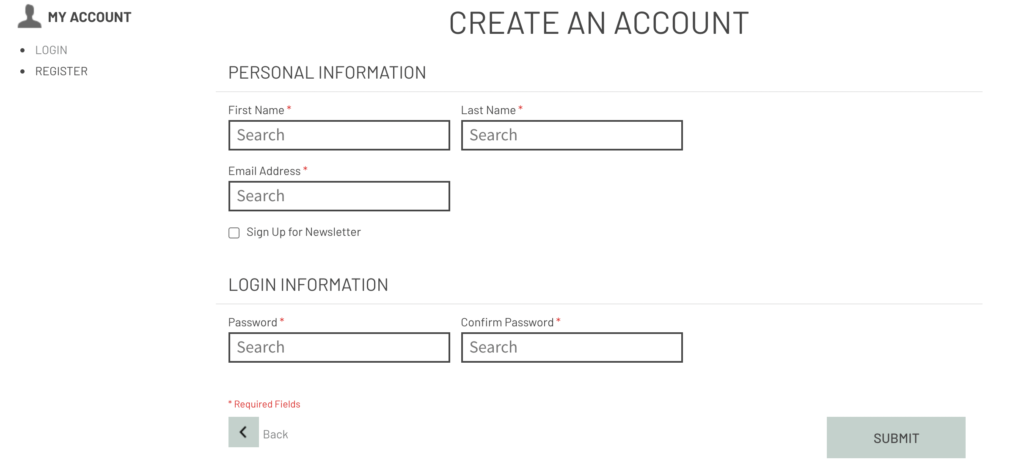
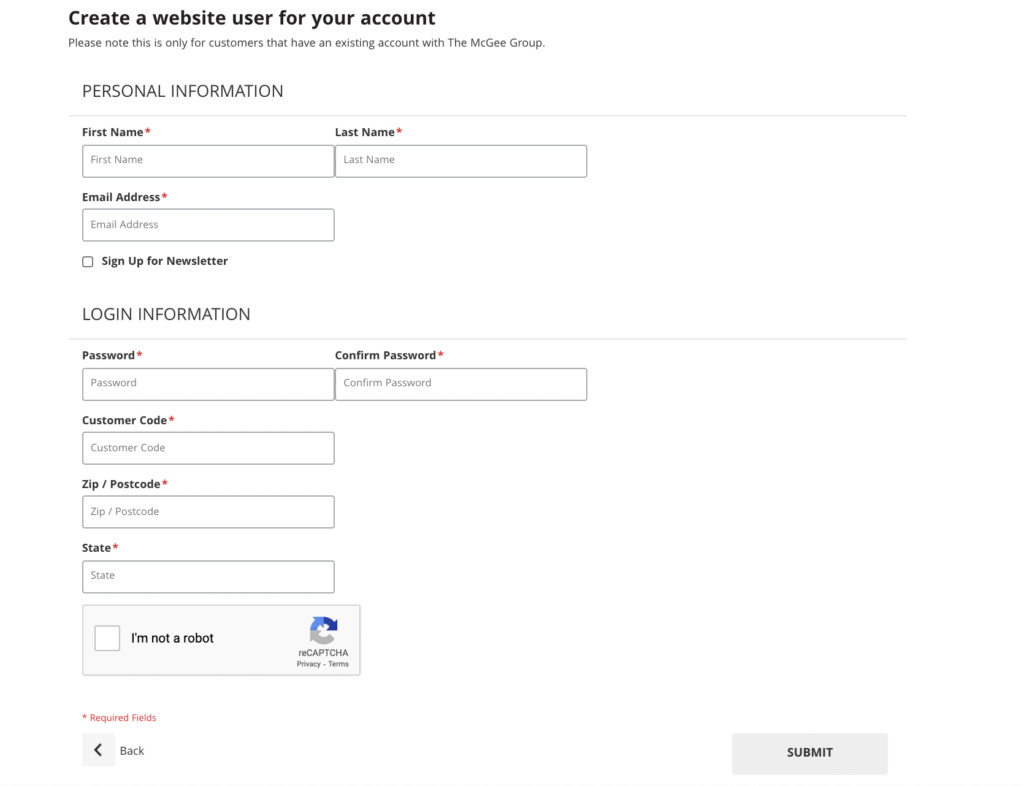
A registration form appears when a guest user creates an account with your web store. You can modify the form to include fields to suit your business needs.
Getting Started

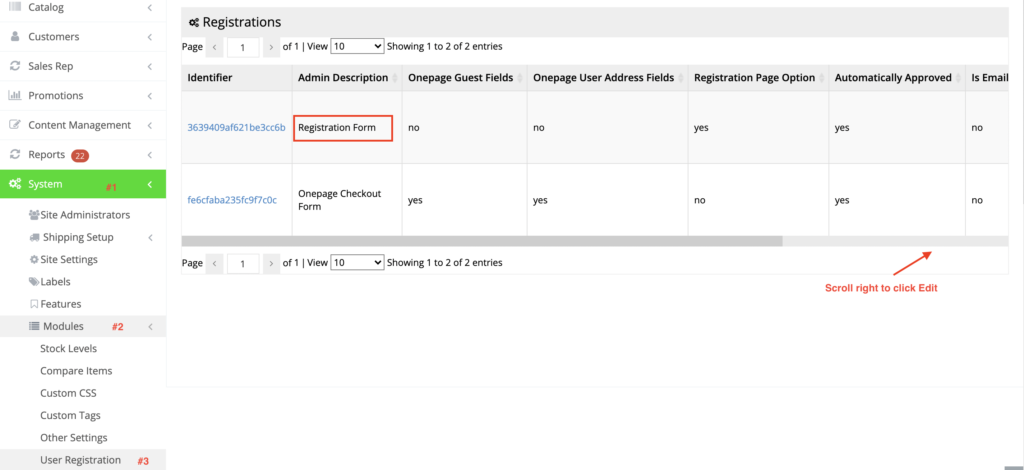
Go to your admin dashboard and navigate to System > Modules > User Registration. Scroll right to find the Edit button to modify the registration form.
Add/Edit fields

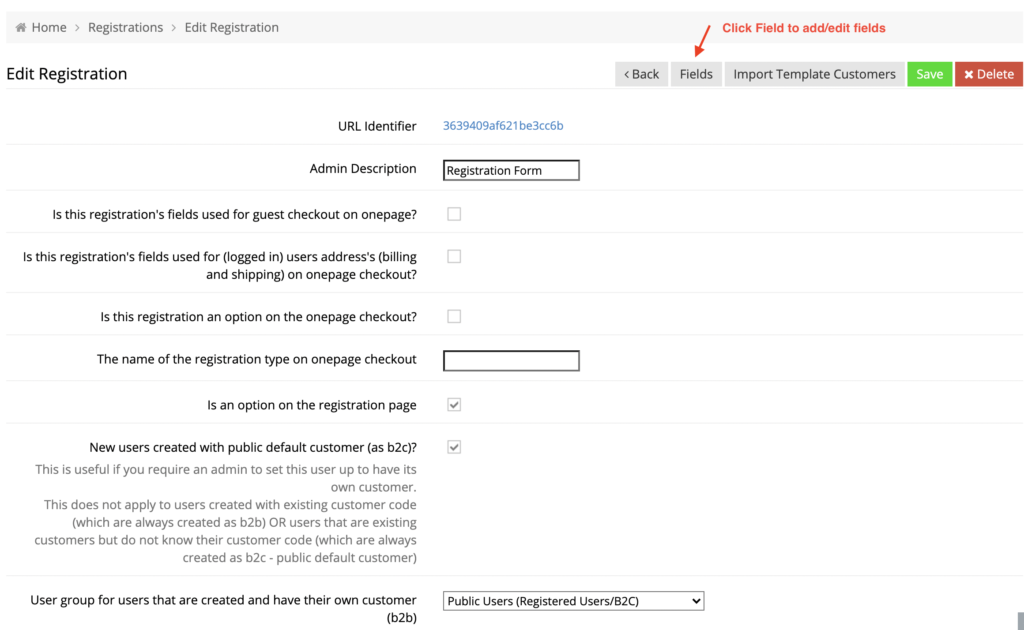
On the Edit Registration screen, click the Fields button to add a new field or edit an existing one.
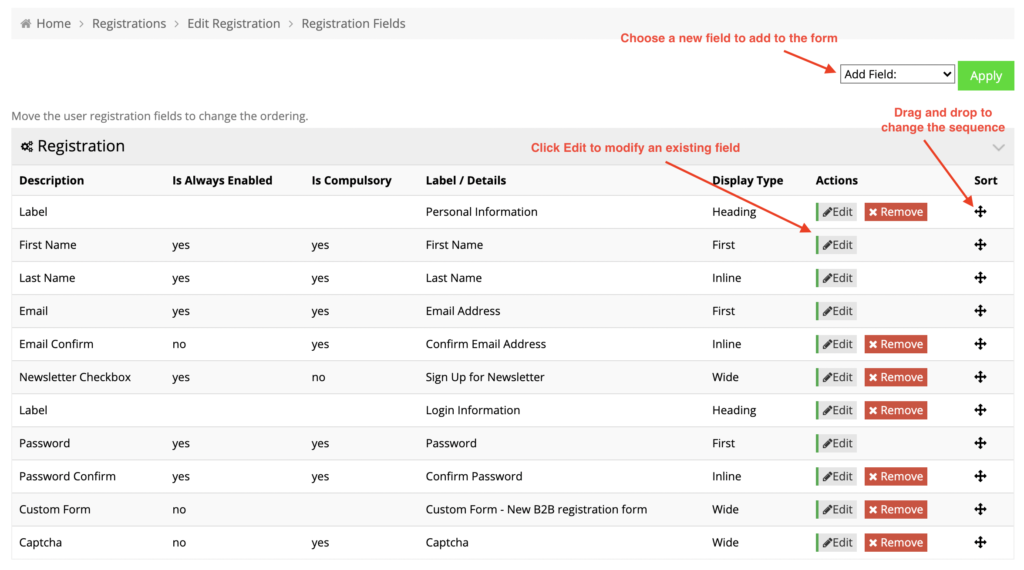
You can choose a new field from Add Field dropdown. Click Edit to modify an existing field or drag and drop a field to change its placement on the form. While changing the order, please ensure to click “Apply” after each movement.
This is how a registration form will look after including additional fields.
webstore

About Latika

View all posts by Latika →

Popular Articles

  • How to Generate Sitemaps and the Google Product Feed 3560 0
  • How to Delete or Deactivate Promo Codes 3519 0
  • Enable Cloudflare Rate Limiting 3045 0
  • Enable Firewall Rules and a JavaScript Browser Challenge 2843 16
  • How to Add a JavaScript Snippet 2577 8

New Articles

  • Error when adding a new user: Email is already in use 1074 0
  • How to Check commercebuild Payments Version 1353 0
  • How to Enable reCAPTCHA on Custom Forms 1214 0
  • Manually posting an order 1437 0
  • Adding a custom message to the shipping step at checkout 1228 0
© commercebuild 2022. All rights reserved.