
commercebuild Success Portal commercebuild Success Portal

  • Home
  • Submit a Ticket
  • Updates
  • Login
  • Contact Us
Home / Tutorials / How to Map the Order Email to a Sage 300 Optional Field

How to Map the Order Email to a Sage 300 Optional Field

1056 views Less than a minute 4

To map the email of a web store user to the Sage order, you can leverage a Sage 300 optional field.

Create the Sage 300 Optional Field

First, be sure that you have created an optional field to store the email address in the order.
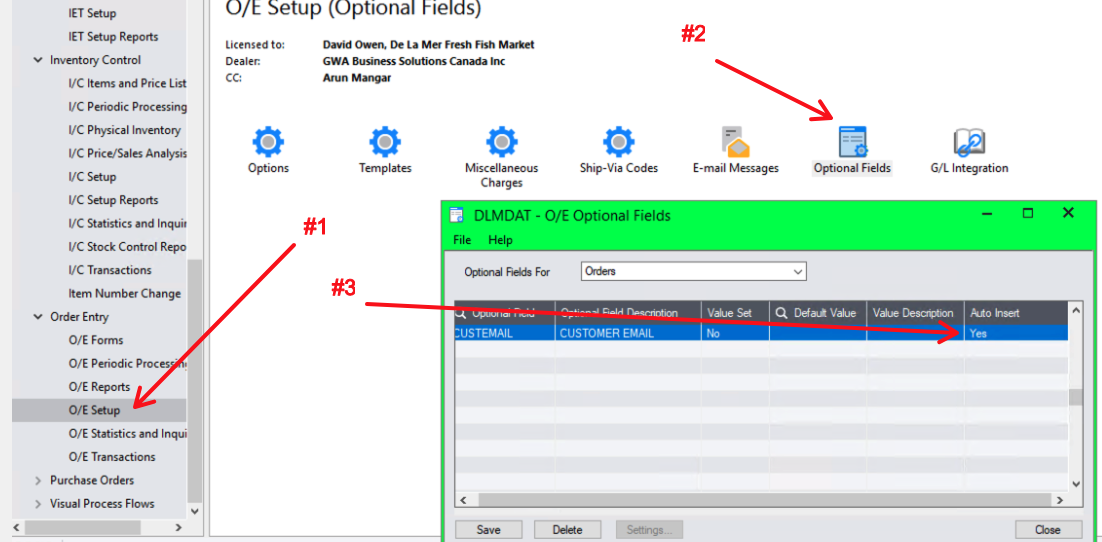
The Auto Insert value must be Yes. Otherwise, the order will fail with the following error:

<<*>>ERROR MESSAGES (response)|*|Insert Order: Order [HeaderOptionalFields]: Error Source: accpacLayer Error Function: Insert Optional Fields Error Details: Optional field cannot be blank.

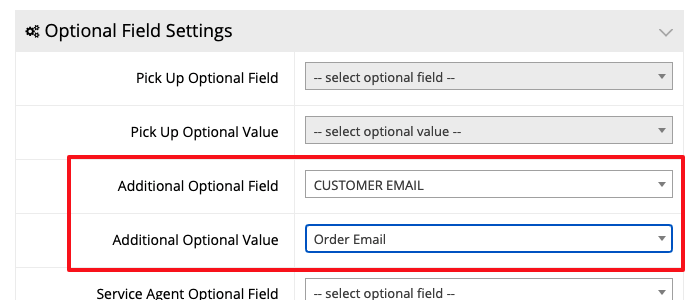
Set the Field in Order Settings

The next step is to go to System > Order Settings and locate the Optional Field Settings. Once there, choose your optional field and the Order Email option.
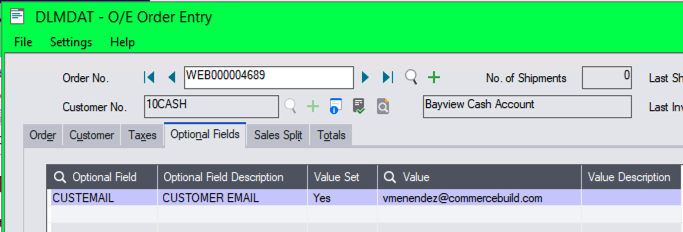
Check Order Optional Fields

Finally, submit a test order and observe the order Optional Fields to verify that the order email was sent to Sage 300.
Sage 300 Tutorials

About Bradly Hale

View all posts by Bradly Hale →

Related Articles

  • How to Enable reCAPTCHA on Custom Forms
  • Adding a custom message to the shipping step at checkout
  • How to configure Stripe as a payment method
  • SQL Server Change Tracking Query for Sage 300 and X3

Popular Articles

  • How to Generate Sitemaps and the Google Product Feed 3256 0
  • Enable Cloudflare Rate Limiting 2930 0
  • Enable Firewall Rules and a JavaScript Browser Challenge 2820 16
  • How to Add a JavaScript Snippet 2469 8
  • IP Allowlist 2442 0

New Articles

  • Error when adding a new user: Email is already in use 997 0
  • How to Check commercebuild Payments Version 1272 0
  • How to Enable reCAPTCHA on Custom Forms 1200 0
  • Manually posting an order 1352 0
  • Adding a custom message to the shipping step at checkout 1152 0
© commercebuild 2022. All rights reserved.