
commercebuild Success Portal commercebuild Success Portal

  • Home
  • Submit a Ticket
  • Updates
  • Login
  • Contact Us
Home / FAQ / How to Enable reCAPTCHA on Checkout Pages

How to Enable reCAPTCHA on Checkout Pages

1367 views Less than a minute 0

To enable reCATPCHA on checkout pages, go to your Dashboard, and click System > Features.

Once in Features, you will automatically land on the B2B Features. You can enable reCAPTCHA for B2B users by toggling ON Enable Captcha at Checkout.
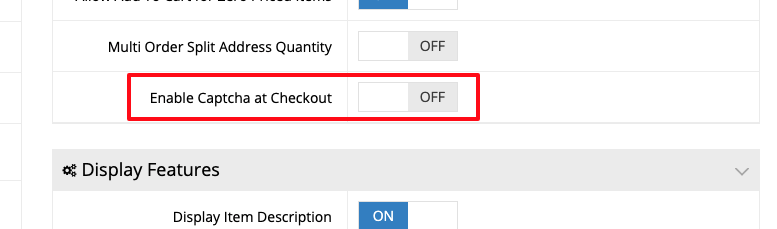
Once enabled for B2B users, scroll to the top of the page and click B2C (Public) and enable the same feature for B2C users.

Please note that if you are enabling this setting to prevent fraudulent transaction attempts, it may only be necessary to enable reCAPTCHA for B2C users. Additionally, for extra security, you may consider putting your web store behind Cloudflare and configuring firewall settings or rate limiting.

webstore FAQ

About Bradly Hale

View all posts by Bradly Hale →

Related Articles

  • Enabling Promotion Field in Checkout
  • Adding Tax Exemptions in Avalara
  • How to Grey Cloud (Deactivate Proxy) at Cloudflare
  • How to Modify Transaction Email Recipients

Popular Articles

  • Enable Cloudflare Rate Limiting 2686 0
  • Enable Firewall Rules and a JavaScript Browser Challenge 2572 16
  • How to Add a JavaScript Snippet 2284 8
  • IP Allowlist 2208 0
  • Signing up for Cloudflare and Configuring Your Domain 2127 4

New Articles

  • Error when adding a new user: Email is already in use 866 0
  • How to Check commercebuild Payments Version 1139 0
  • How to Enable reCAPTCHA on Custom Forms 1036 0
  • Manually posting an order 1191 0
  • Adding a custom message to the shipping step at checkout 1006 0
© commercebuild 2022. All rights reserved.